
The GLOBALG.A.P. IT platform contains two types of certificates, depending on their origin:
- Certificates migrated from the GLOBALG.A.P. Database
- Certificates issued in CertifierOS after completing the full audit and certification process in the system
Recertification of Migrated Certificates
Certificates migrated from the GLOBALG.A.P. Database can be identified by a two-part certificate ID, such as 123456-654321, and by the absence of a linked audit in CertifierOS.
When the “Valid to” date is reached, the IT platform (CertifierOS) automatically creates a new certificate version with the status “Expired.”
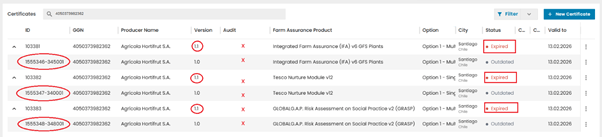
In these cases, CBs must complete the full recertification process in CertifierOS before issuing a new certificate.
This process includes the following steps:
- Create the producer’s assets, including sites/PHUs and their products.
- Create a work order for the audit.
- Enter all required audit information in the audit Smartforms.
- Take the certification decision.
- Issue the new certificate.
This full process is required because migrated certificates are not linked to audit information in CertifierOS. As a result, a new certification chain must be created in CertifierOS.
Recertification of Certificates Originally Issued in CertifierOS
To start the recertification process for a certificate originally issued in CertifierOS, follow these steps:
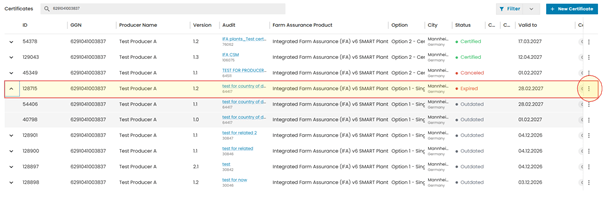
- Select the certificate from the list.
- Click the three dots on the right side of the certificate row.
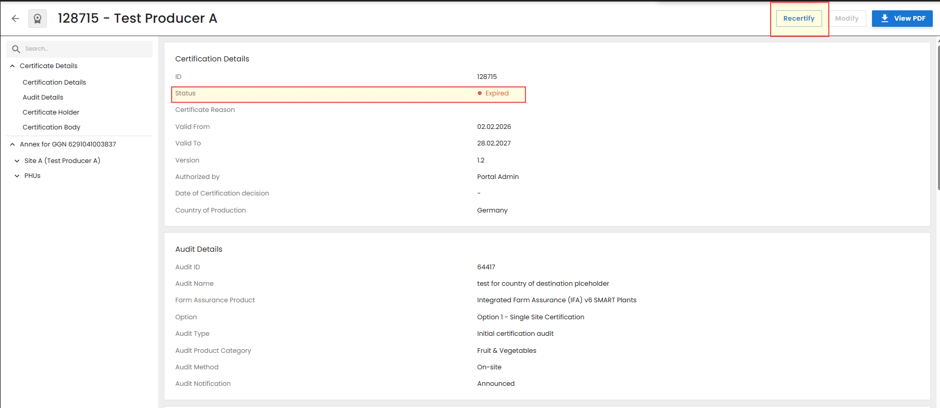
- Select “View” to open the certificate report.
- In the top-right corner, click “Recertify.”
Note: If the certificate is still valid, with the status “Certified” or “Extended,” both “Recertify” and “Modify” will be available.
Important: Do not use the “Modify” option for recertification.
Create the Recertification Audit
After clicking “Recertify,” the system displays a message prompting you to click “Create” to start the recertification audit:
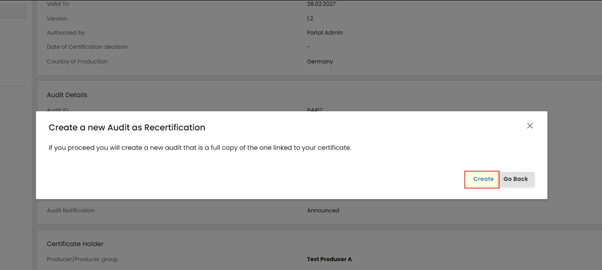
Note: The recertification audit is created as an identical copy of the audit used to issue the previous certificate.
Update the audit name and audit type to clearly indicate that the audit is for recertification.
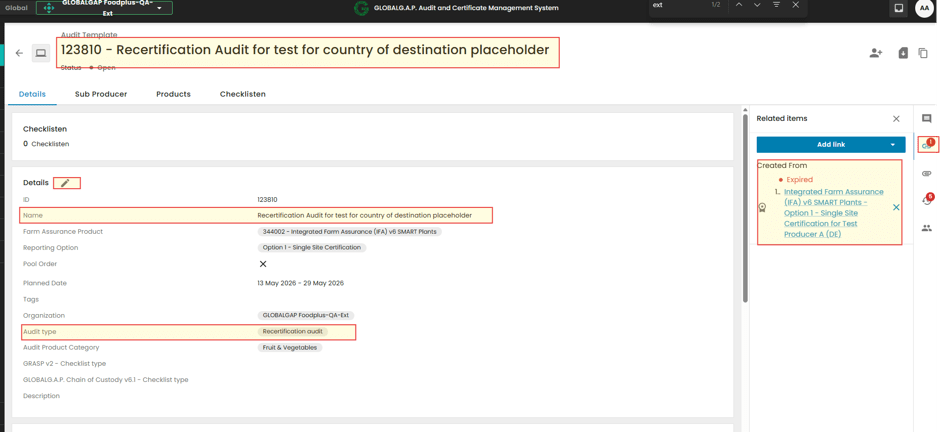
Note: The previous certificate remains linked to the new recertification audit until the new certificate is issued.
Once the new certificate is issued, the previous certificate version changes to the status “Outdated.”
Update Audit Details and Issue the Certificate
The new recertification audit will have the status “Open,” and all audit information in the Smartforms will be editable. Update all required audit details, including the Date of Certification Decision and the new “Valid from” and “Valid to” dates.
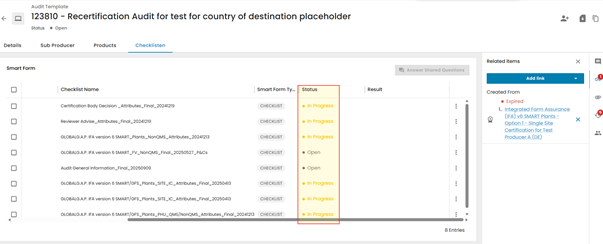
If the recertification audit is compliant, set the audit status to “Closed Compliant” and issue the new valid certificate or Letter of Conformance.