
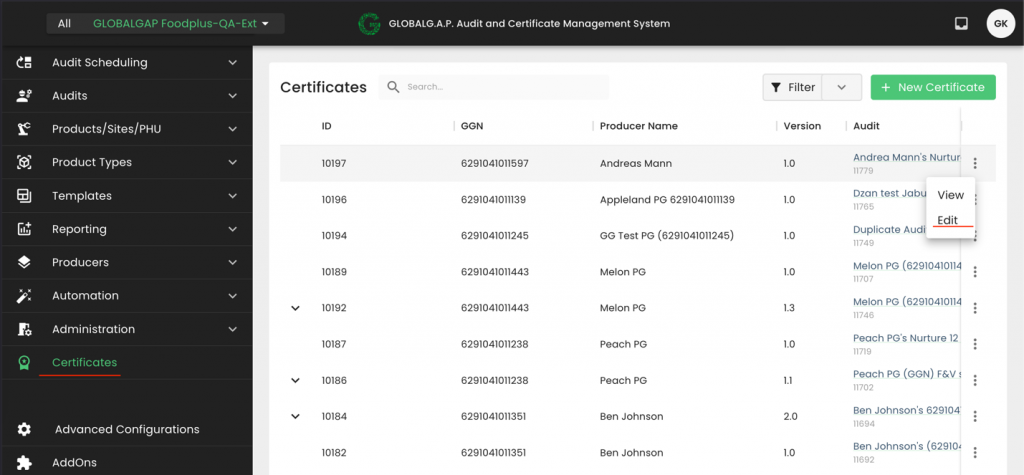
You need to go to the “Certificates” section on CertifierOS, select the certificate that needs to be extended and press on the three dots and edit:
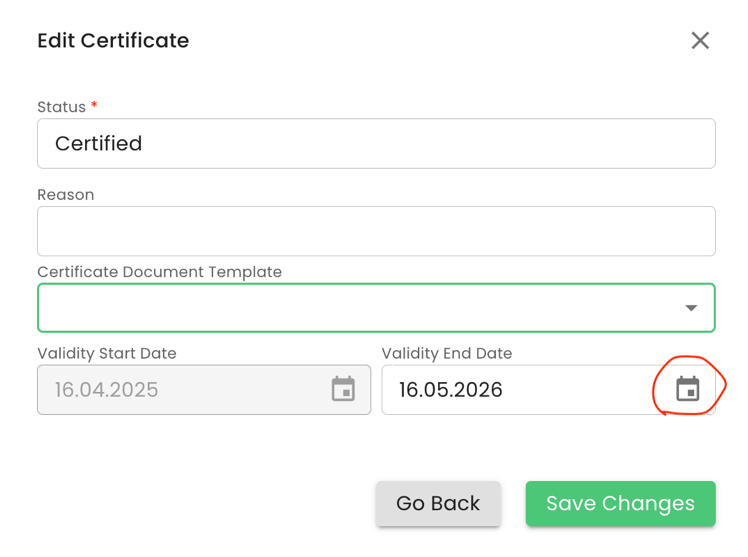
You need to press the calendar icon on the pop-up window
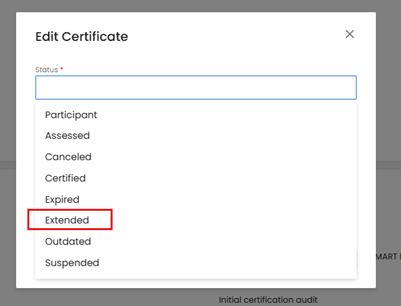
When certifying the extension, “Certificate status” shall be set to Extended.
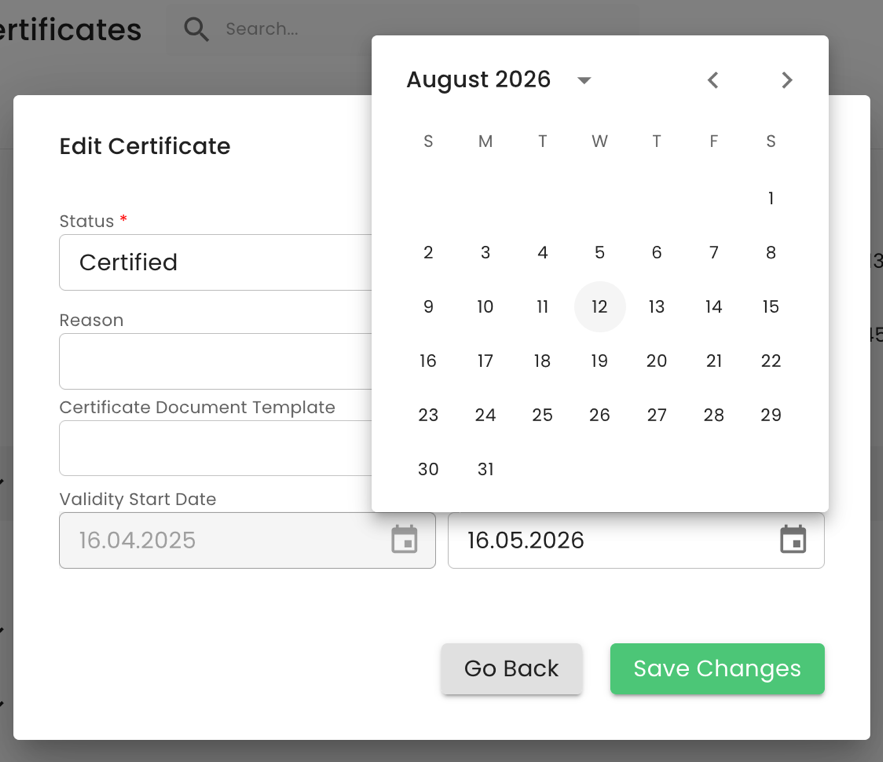
Next, you need to select the new validity date based on the provisions of the GLOBALG.A.P. GRs and press “Save Changes”:
Please note that only the latest version of a certificate can be extended. In the example below, the 2nd version of the certificate has the edit option:

All previous versions can only be viewed:

An extended certificate will receive a new version number, i.e., from Version 1, it will become Version 1.1, from Version 1.1, it will become Version 1.2, from Version 2, it will become Version 2.1, etc.
Please note that certificates that were previously sanctioned (such as suspended) and later reinstated cannot be extended. A modification audit is required in such cases.
The validity of the extension is always the valid to date of the certificate plus the extension period which can be up to 4 months.
Extend certificates coming from the Database
The certificate that has been transferred from the Database still needs to be valid (Certified/Assessed). Only in this case the certificate “Edit” option will be active and it will allow CB to set the new “Valid to” date of the certificate. If the certificate is “Expired”, a full recertification process in COS need to be conducted.