
To use the CertifierOS mobile application, each user needs to be assigned with a license key. GLOBALG.A.P. certification bodies can generate the license keys themselves by following these instructions.
- Log in to the online portal at: PREPROD osapiens Portal – Login (for the PREPROD/test environment) and
at: https://prod.osapiens.cloud/portal (for the LIVE environment)
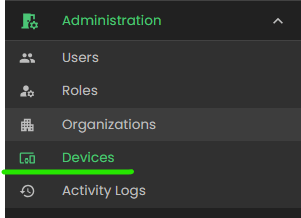
- In the left-hand navigation menu, go to Administration -> Devices
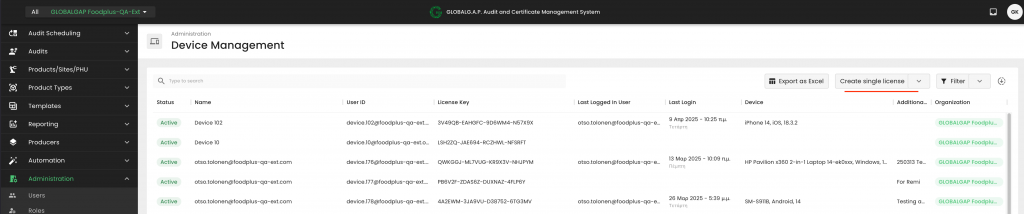
- Click on “Create single license”
- Select the username of the CB user to whom the license should be given. Please note that the username is the same as the one the user uses to log in to the platform
- Make sure that the “License status” is active
- Select your organization (CB):
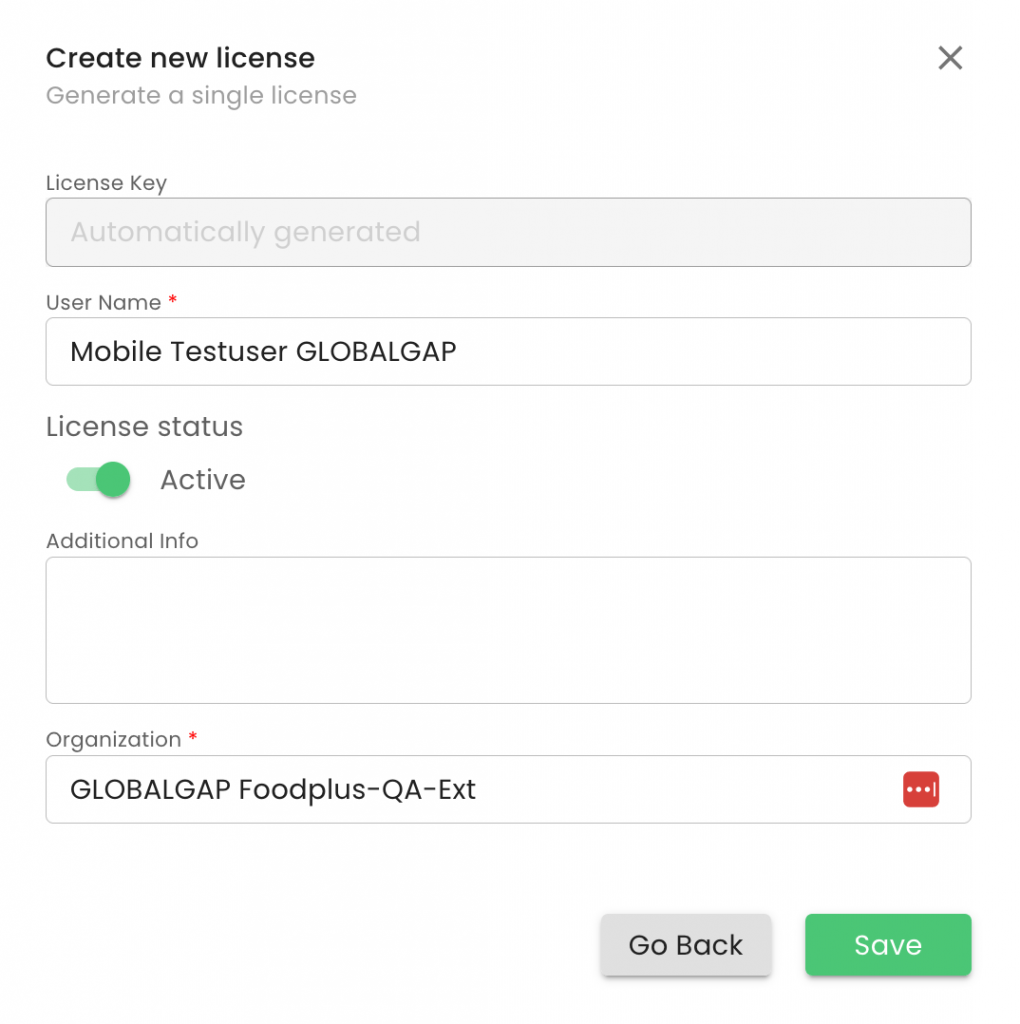
- Click “Save” to complete the process
- A license key has now been assigned to the specific user. The user needs to use the license key when first logging into the mobile application
Find additional information here regarding onboarding the mobile app