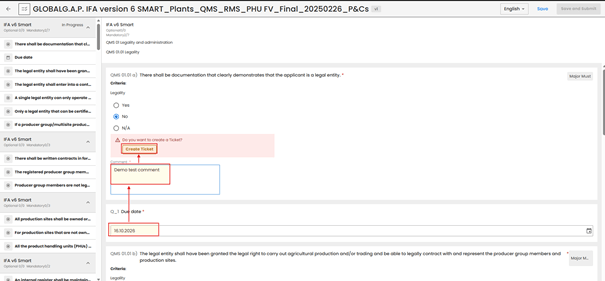
Once a non-conformance (NC) is identified, it must be marked accordingly in the P&C smart form.
To ensure proper documentation and provide a sufficient audit trail, add the due date and a detailed comment. Then create the ticket by selecting the dedicated hyperlink:
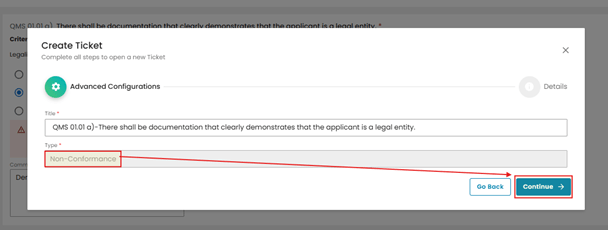
The next pop-window will include the reference to the P&C and NC Type. In our example this is a Major Must and a Non-Conformance”. Then we need to click on Continue:
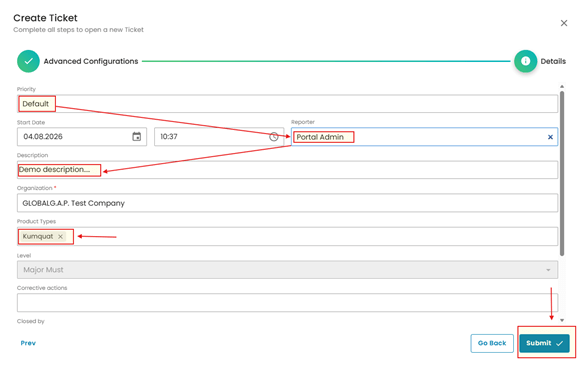
In the next view, add the auditor’s name by selecting it from the dropdown menu or entering it manually. Complete the ticket description field. The NC level is populated automatically based on the P&C level for which the ticket is created. The system also pre-fills all products included in the audit. If the NC applies only to a specific product, remove the unaffected products and keep only the applicable one. If it applies to the entire audit, leave all products listed in the “Product Types” field.
Note: This step is important for the product suspension process.
Create the ticket by clicking the “Submit” button:
With this, the ticket was created, and for further processing, you can access it directly via the P&C smart form:
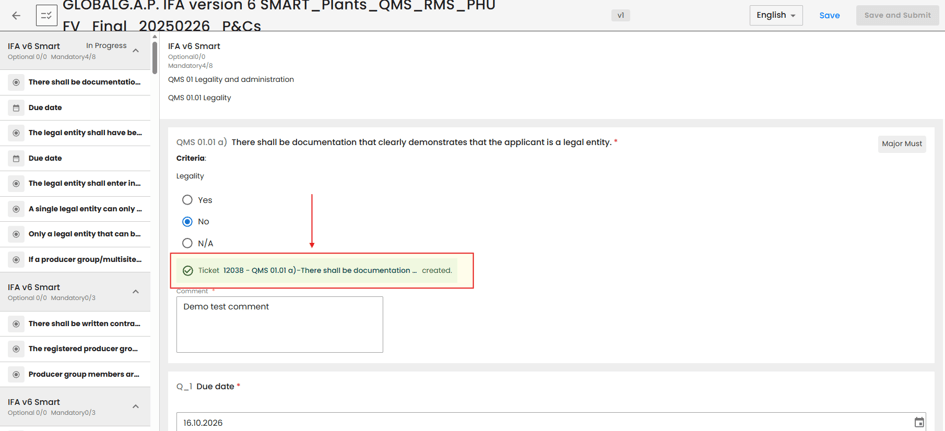
or the audit work order:
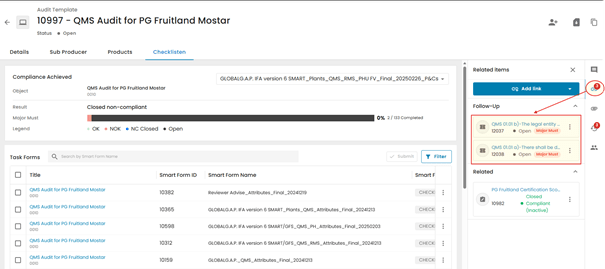
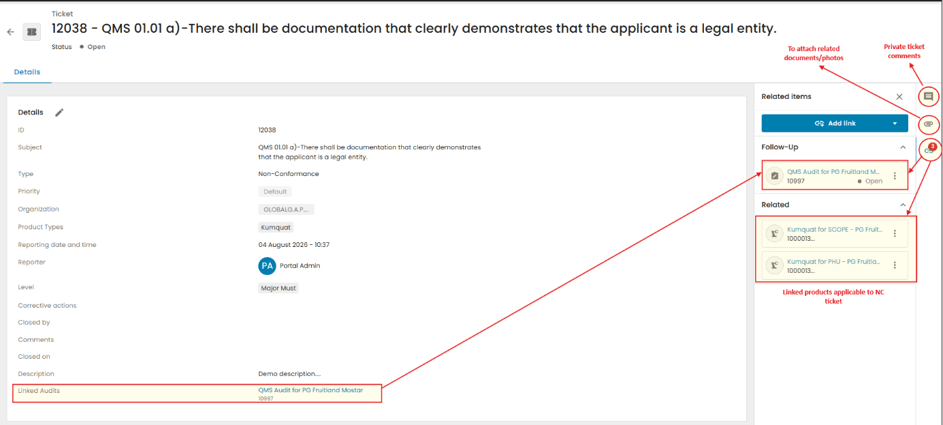
Once the ticket is opened, the view below will appear. In the right-hand side panel, you can access the Comments section to add private comments that will not appear in the report, the Attachments section to upload documents or photos related to the corrective actions, and the Links section to view the audit and products associated with the NC ticket:
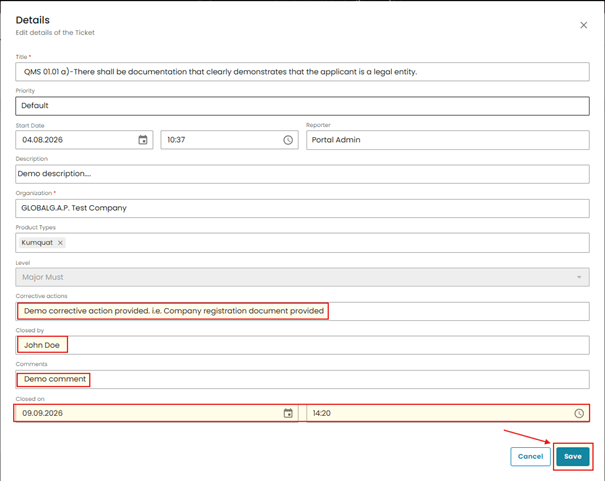
To record corrective actions or edit the ticket, click on the pencil icon next to the “Details” on the upper left-hand side. This will open the interaction pop-up window. Fill out the highlighted fields below to document the corrective actions. Once this is done, click on Save:
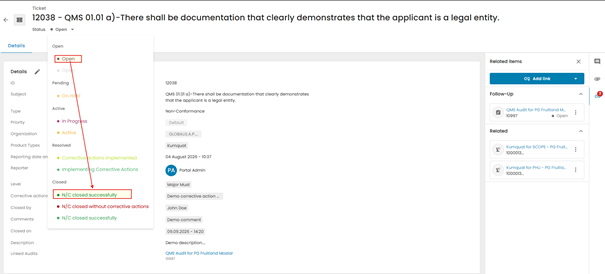
To close the NC ticket, you need to click on the status button on the top left-hand side and select the applicable status. In this example, we can consider that the corrective actions were accepted and the NC was closed successfully.
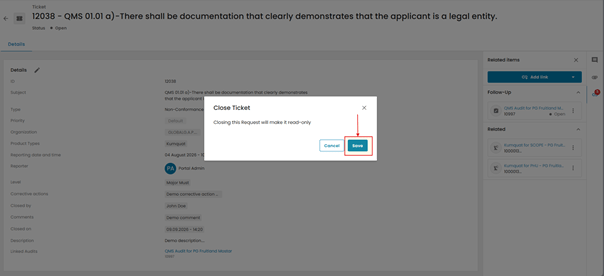
Now we need to click on Save:
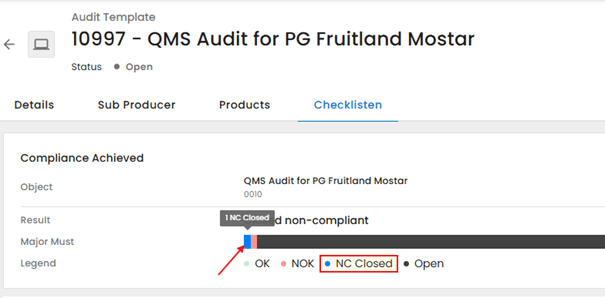
With this, the audit overview changed from “NOK” to “NC Closed” and the NC changed from red to blue: