
| This feature is available for Asset Attributes Smartforms only. It is not applicable to Task Forms. This process can upload up to 1000 forms at once. If more than 1000 Attribute Smartforms need to be uploaded, upload the first 1000 Smartforms first. Then select the remaining Smartforms, download an additional Excel sheet, and repeat the process until all Smartforms have been included. |
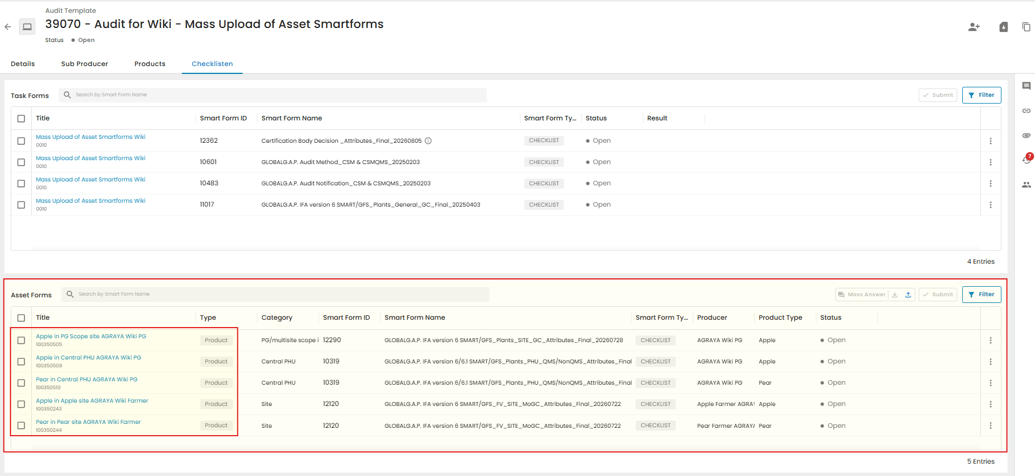
The Smart Form Mass Upload feature allows Certification Bodies to complete Attribute Smart Forms via Excel and uploads the information into CertifierOS for any Audit. This can significantly reduce the time and effort required to complete audits with many sites, products, PHUs, or Producer Group members.
When Should This Feature Be Used?
- When many Smartforms need to be completed
- When multiple attributes require the same answers.
- If the user prefers working in Excel rather than opening each Smartform individually in the CertifierOS user Interface
Step 1: Download the Mass Upload Excel Template
- Open the audit in CertifierOS.
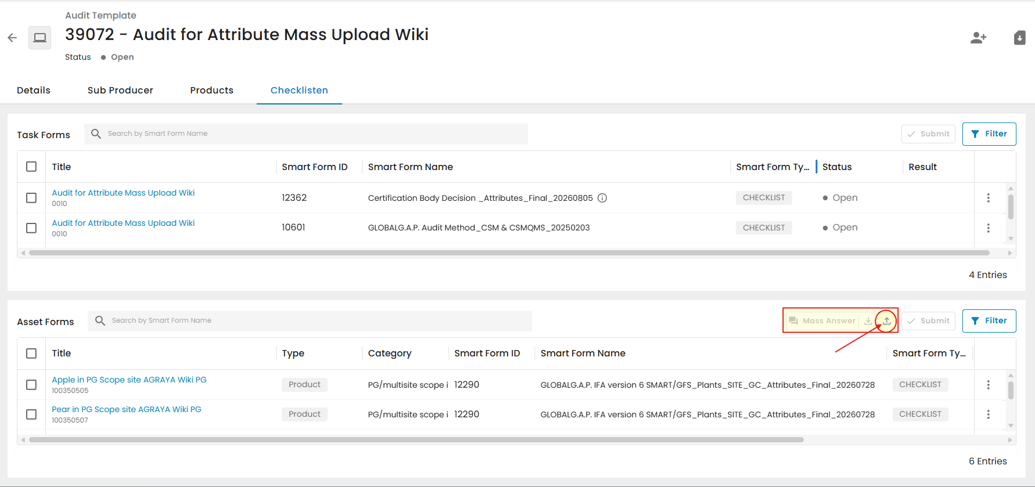
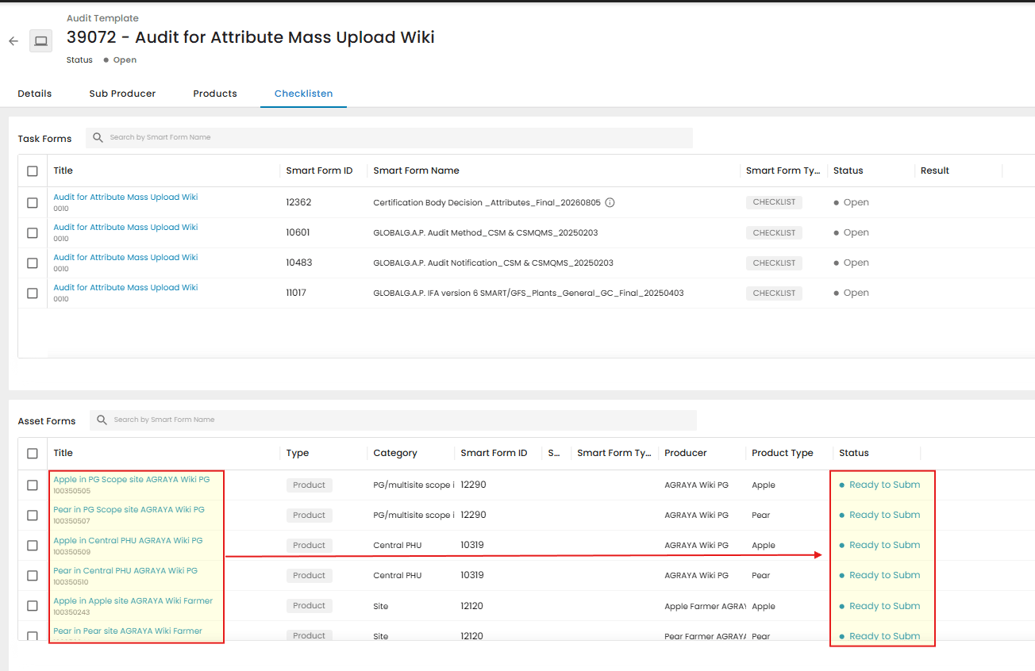
- Navigate to Checklists.
- Select Asset Smartforms individually or add them in bulk. Only selected ones will be included in the Excel sheet
- Click Download and save the dedicated Excel file to your computer.
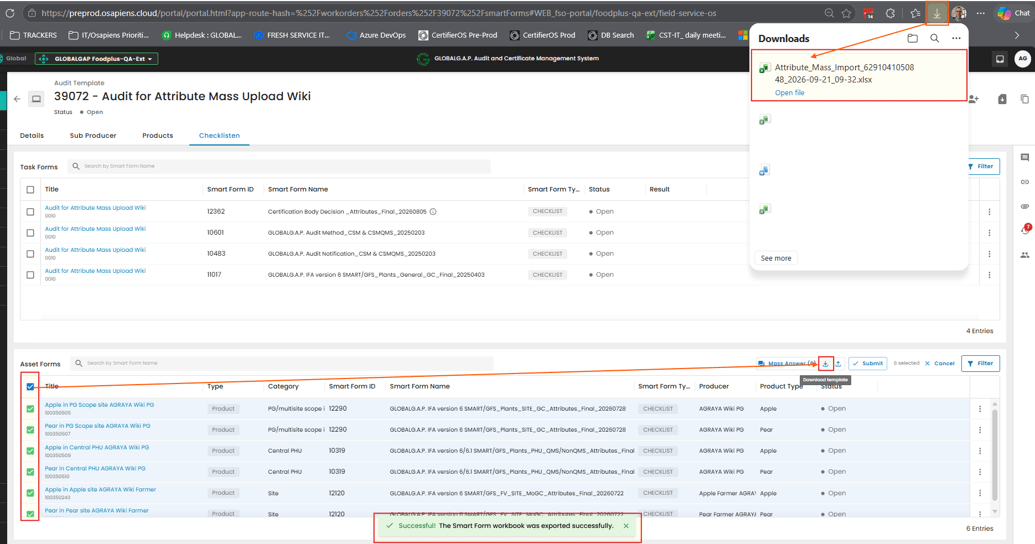
| Important notice: The downloaded file contains all Attribute Smartforms that are selected and currently available in the audit. If a Smartform does not exist in the audit or it is not selected, it will not appear in the Excel file. |
Step 2: Understand the Excel Template Structure
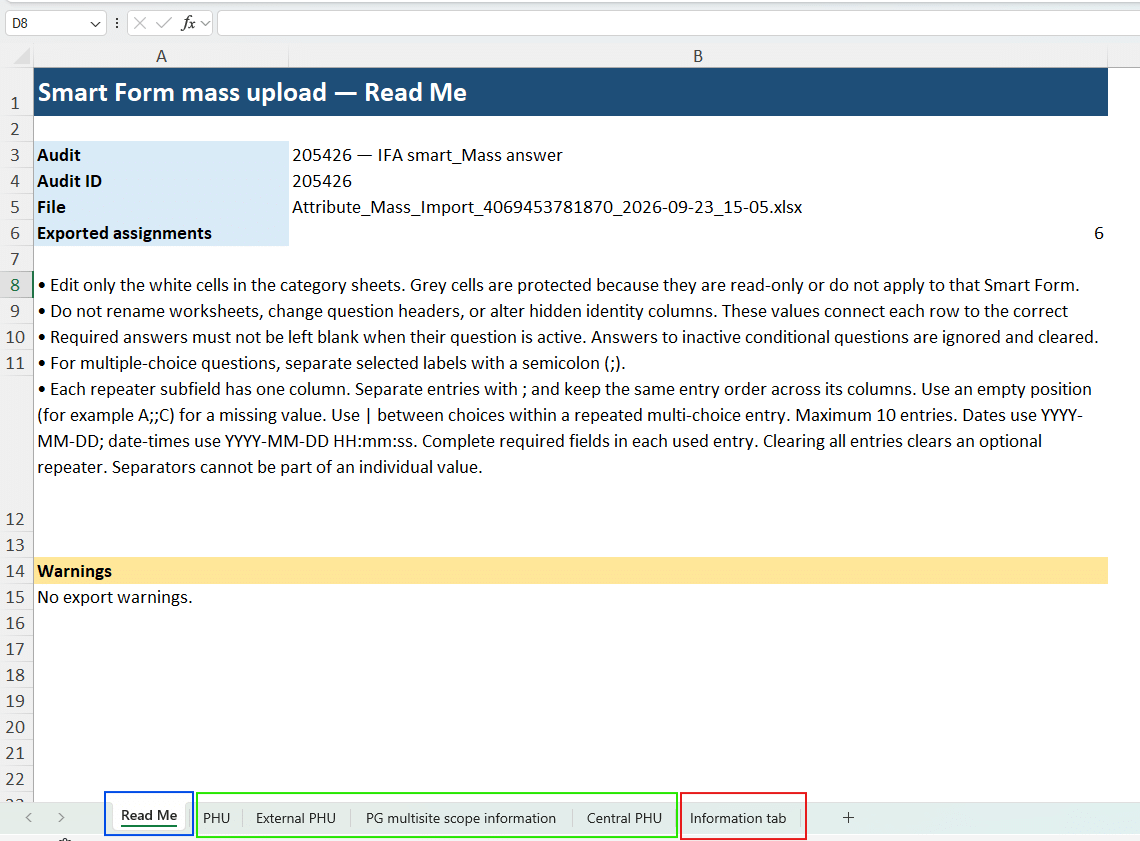
Read Me tab
Provides general instructions for using the template.
Attribute Mass Upload Smartform tabs
Contains the Asset Attribute Smartform questions and are used to enter your answers. The number of tabs in the Excel template corresponds to the number of Asset Attribute Smartform types in the audit template.
(The Asset attribute Smartfoms will be created by the system during the Audit creation in CertifierOS portal)
Information tab
Contains predefined values used for certain question types, such as multi-selected fields and countries of destination. This tab is for reference only and should not be edited.
Step 3: Enter Attribute Information in the Excel Sheet
Edit Only White Cells below question fields highlighted in green!!!
Enter information only in the editable white cells (outlined in green in the screenshot below.)
Do not change or modify:
- Grey cells (outlined in red in the screenshot below.)
- Product names
- Asset information
- Audit information
- System-generated values
- Do not rename worksheets
These fields are are fixed and automatically populated by CertifierOS.

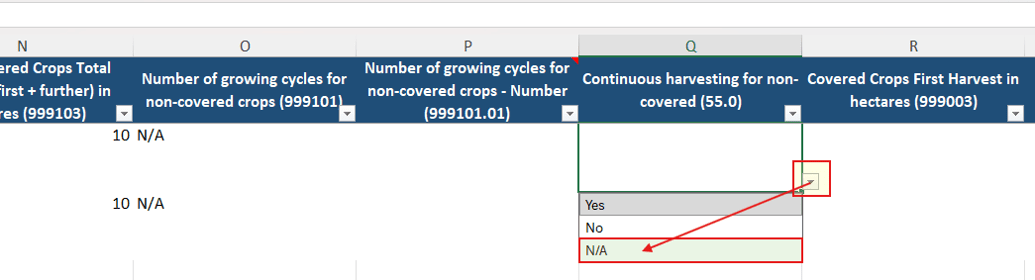
Answering Drop-Down Questions
Some questions provide predefined answer options. Simply select the appropriate value from the drop-down list. Use only the available values. Custom entries are not supported.
See the example below:
| Continuous harvesting for non-covered |
| Yes |
| No |
| N/A |
Answering Multiple-Entry Questions
Some Attribute Smartform questions allow multiple values.
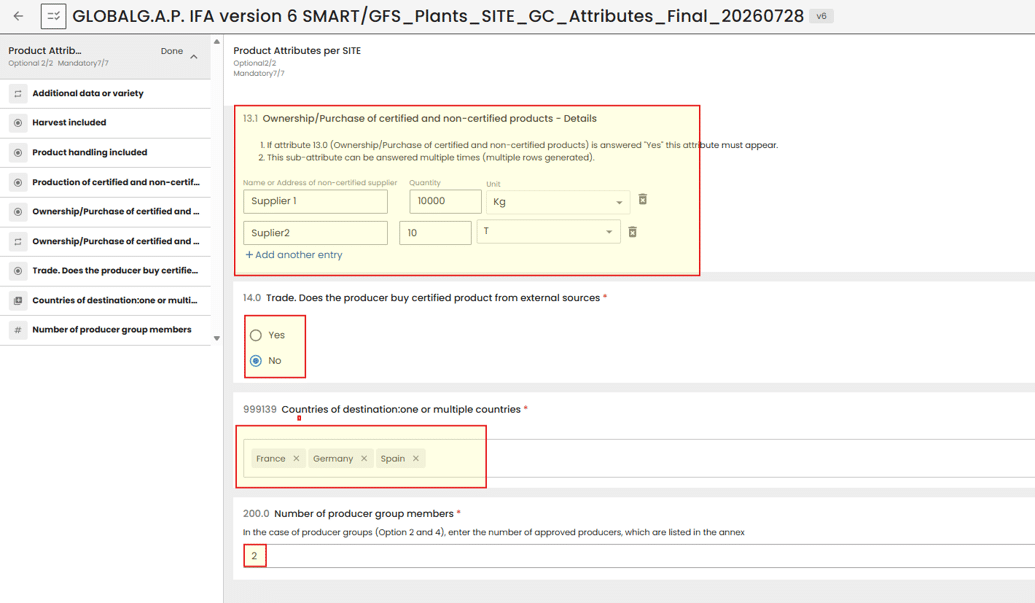
Example: In CertifierOS user interface, the question appears in the Asset Attribute Smartform as shown below:
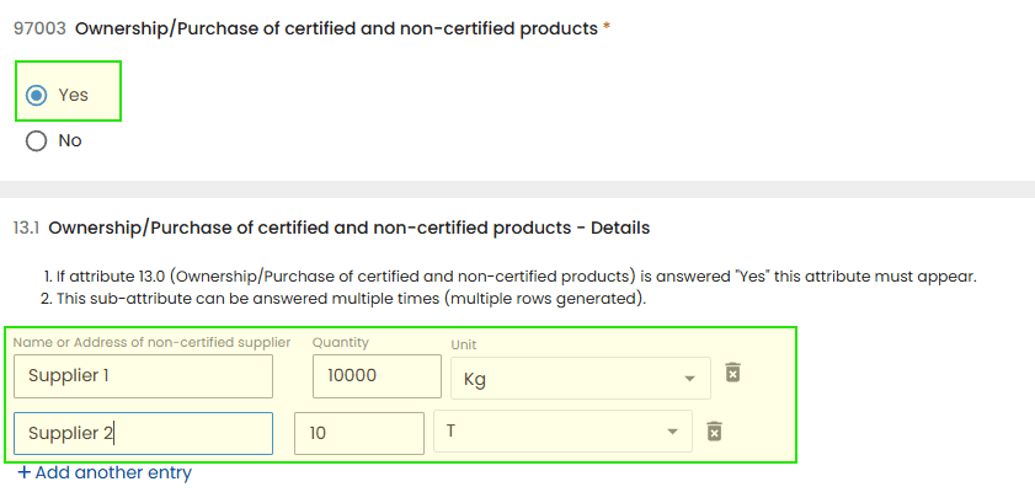
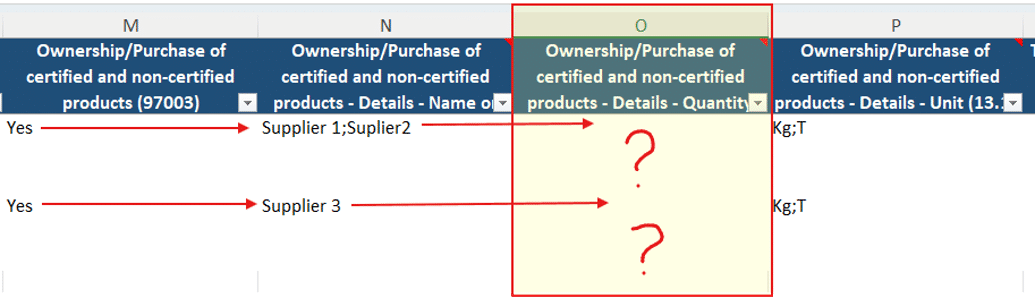
The identical question is also displayed in the Excel Attribute mass upload sheet, where the relevant answers should be entered as shown below:
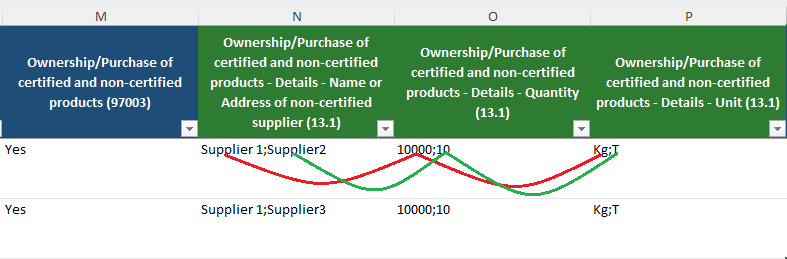
In the above shown cases in the Excel mass upload sheet:
- Separate each value with a semicolon (;) without space
- Keep the values in the same order across related columns.
In the example above we have:
Supplier 1: Quantity: 10000, Unit: Kg (Kilograms)
Supplier 2: Quantity: 10, Unit: T (Tons)
Example
Quantity column:
| 10000;10 |
Unit column:
| Kg;T |
This means:
- 10000 = Kg
- 10 = T
| NOTE: The order is important and must match. Use the exact same values that are available in the Smartform, for example, Kg instead of Kilograms or T instead of Tons |
Answering Multi-Select Questions
Questions such as Countries of Destination may allow multiple selections. For these questions:
- Open the Information tab
- Find the value you need.
- Enter the country names exactly as listed (English language only) – Do not use ISO codes (DE, ES, F)
- Separate multiple values with semicolons (;) without space!!!
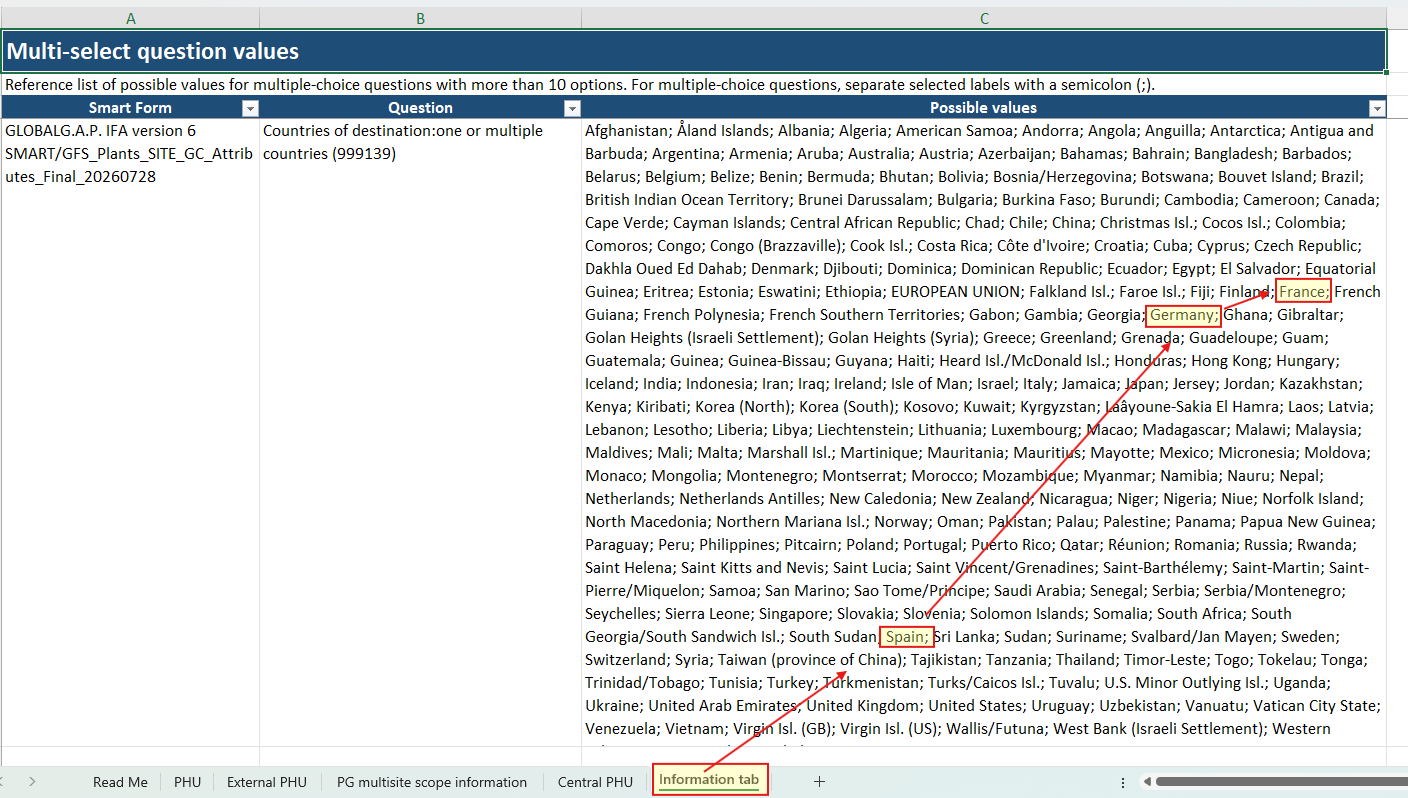
Example of multiple countries of destination correctly entered in the Excel sheet:
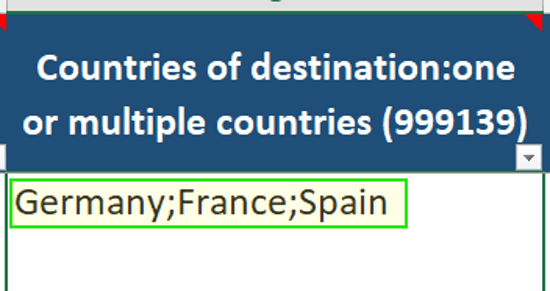
The same values shown in the CertifierOS Attributes Smartform:

Correct Example
| Germany;France;Spain |
Incorrect Examples
| Deutschland Frankreich Espana |
| Germany, France, Spain |
| Germany / France / Spain DE;ES;F |
Important: Values must exactly match the system values. Otherwise, the upload will fail validation.
Save Time with Copy & Paste
The Excel template supports standard Excel features such as:
- Copy
- Paste
- Fill Down
This is particularly useful when many attributes share the same answers. For example, if several Producer Group members have identical information, enter the attribute values once and copy them to the remaining rows.
Step 4: Upload the Completed File
- Save the Excel file.
- Return to the audit.
- Select Upload.
- Drag and drop or browse the file
- If the validation confirms that the information is entered correctly the system will display the following:
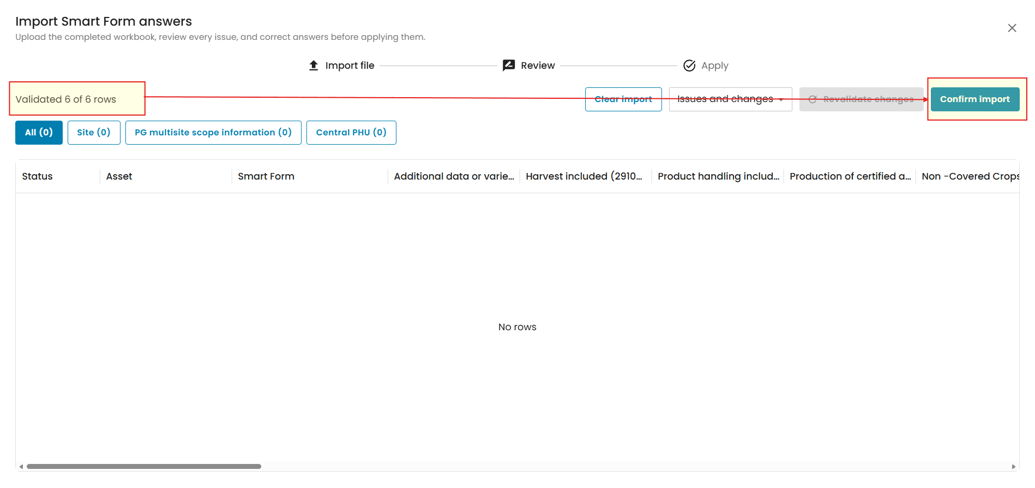
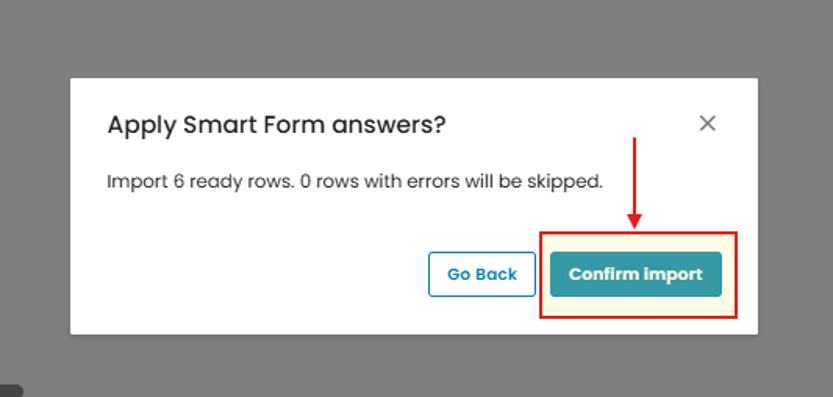
- Click on “Confirm Import”
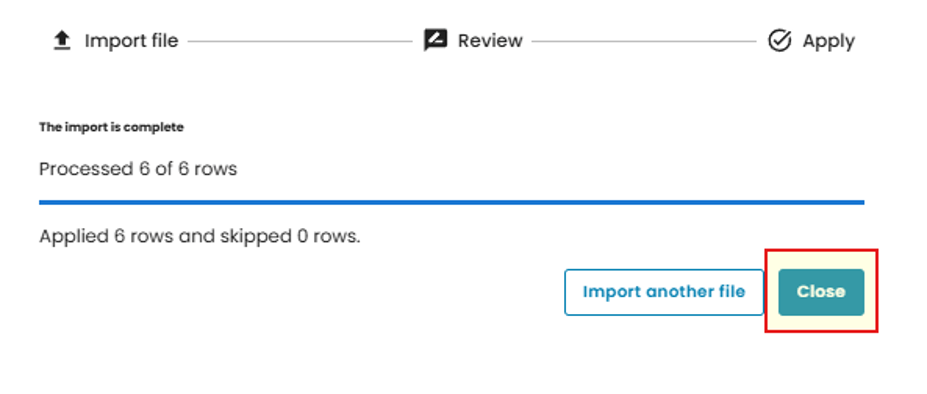
- Close the Import process dialogue box
Step 5: Review Validation Results
If Everything Is Correct
The Smartform information is uploaded successfully and becomes available in the related Audit.

If Errors Are Found
In case a missing or incorrect answer is detected in the upload sheet, the system will display Error messages next to the affected Attribute Form. In this case check the highlighted question where the error is detected (in necessary scroll to the right in order to find the highlighted attribute answer box).
The system will:
- Display an error message.
- Highlight problematic values.
- Reject only the affected Smart Form entries.
In the example below one of the answers is missing:
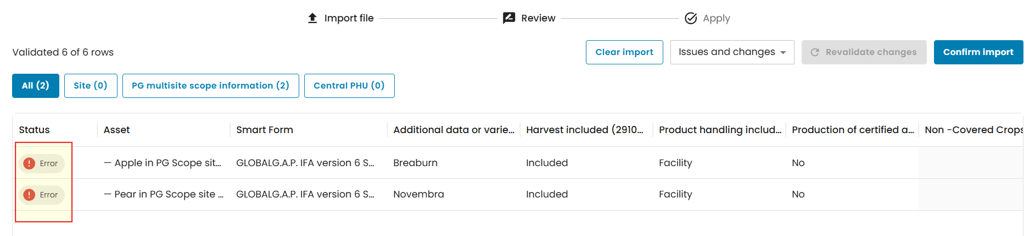
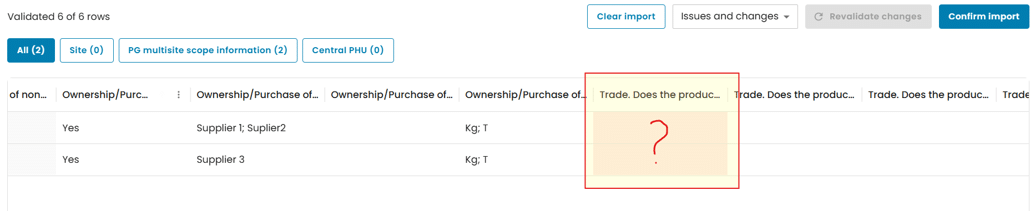
All other valid Smartforms will still be uploaded successfully.
| Example: If ten (10) Smartforms are uploaded and one contains an invalid value, nine Smartforms will be uploaded and one Smartform will require correction. |
Correcting Errors
Option 1: Correct It Directly in CertifierOS
- Open the Smartform.
- Select Edit.
- Correct the information.
- Save.
Option 2: Upload Excel Again
- Correct the error in Excel
- Save the file.
- Upload it again.
Both approaches are supported.
Important: Each Excel File Is Linked to One Audit
Every downloaded Excel file contains the Audit ID from which it was generated.
- The file can be uploaded ONLY to the original audit.
- The file cannot be uploaded to another audit (with different Audit ID)
| Remember: CertifierOS validates the Audit ID and rejects files generated from different audits. |
Modification and Recertification Audits
- Download the Excel file from the Recertification or Modification audit.
- The downloaded file will already contain previously entered Attribute Smartform information.
- Update the information as needed.
- Upload the updated file.
- Always use the file generated from the audit you are currently working on.
Sharing the Excel File
To share the Excel Mass Upload sheet with someone, follow the procedure below:
- Download the Excel file from the audit.
- Send the file via email or another communication channel to the person who can fill out the information
- Information can be updated offline.
- Return the completed Excel file to the Certification Body.
- The Certification Body must upload the file to the same audit in CertifierOS from which the Excel template was downloaded.
Final Submission of Attribute Smartforms
After the Audit Review process is completed
Submit all Smartforms.
After submission:
- The Smartforms become locked and grayed out
- Further uploads are no longer possible.
- Existing data can no longer be overwritten.

Best Practices
- ✓ Always download a fresh Mass Attribute Upload Excel file from the audit you are working on.
- ✓ Use the values provided in drop-down lists and reference tables.
- ✓ Use semicolons (;) for multiple values without a space in between.
- ✓ Use Copy & Paste to speed up data entry when applicable.
- ✓ Review validation messages carefully before submitting.
- ✓ Download a new Mass Attribute Upload Excel file for Modification and Recertification audits.
- ✗ Do not upload a file created from another audit.
- ✗ Do not modify protected or system-generated fields.
- ✗ Do not use alternative spellings or translations of system values.
- ✗ Do not submit Smartforms until all validation errors have been resolved.