
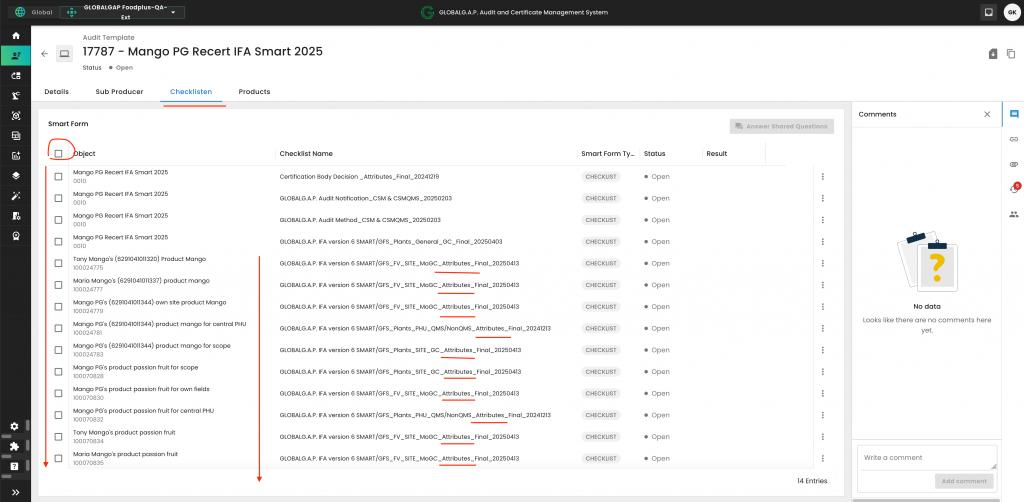
Once the audit work order has been created and the relevant products have been added to the scope, proceed by selecting the Checklist tab (Checklisten).
From the left-hand side, you can choose the smart forms you want to work with. To activate all smart forms at once, click the first checkbox; however, it is recommended to select only the attribute-specific smart forms.
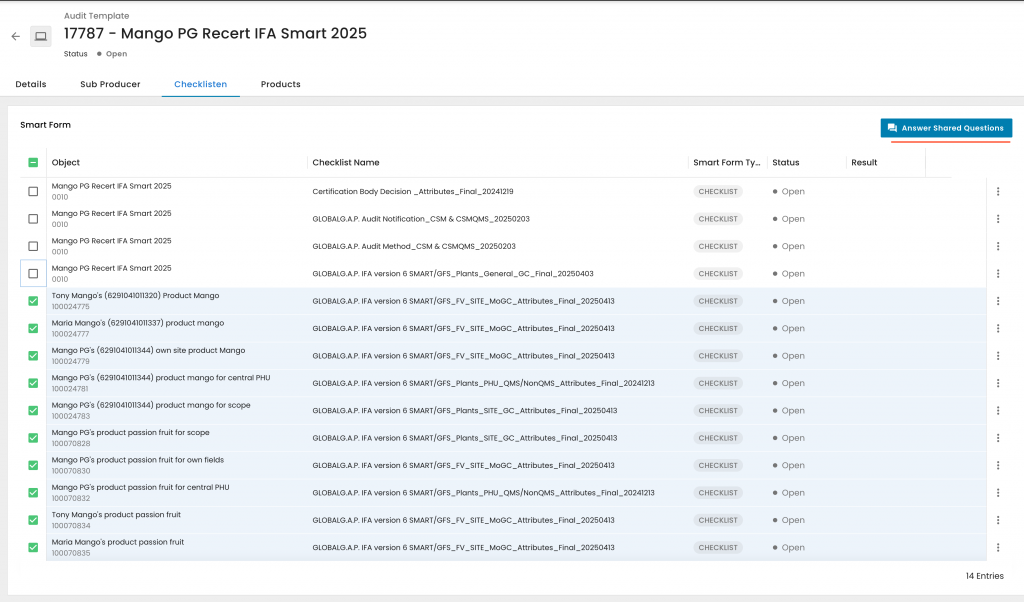
Once you’ve selected at least one smart form, the “Answer Shared Questions” button on the right-hand side will become active:
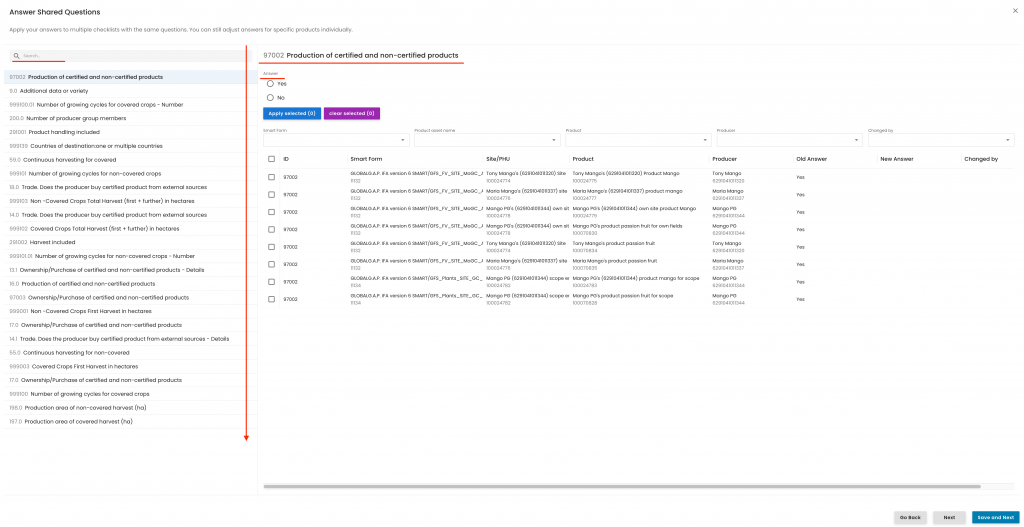
Clicking it will open the following pop-up window.
On the left-hand side, you’ll find a list of all questions that appear in more than one smart form. You can scroll vertically to browse through them and select any question directly. At the top, there’s a search field that enables you to filter and locate specific questions quickly.
On the top right, the currently active question is displayed. Just below it, you’ll see the corresponding answer field, which may either be a predefined selection or a free-text input:
For any questions where it is appropriate, you can respond to all smart forms at once by enabling them simultaneously. Via the first tick box you can enable all smart forms at once:
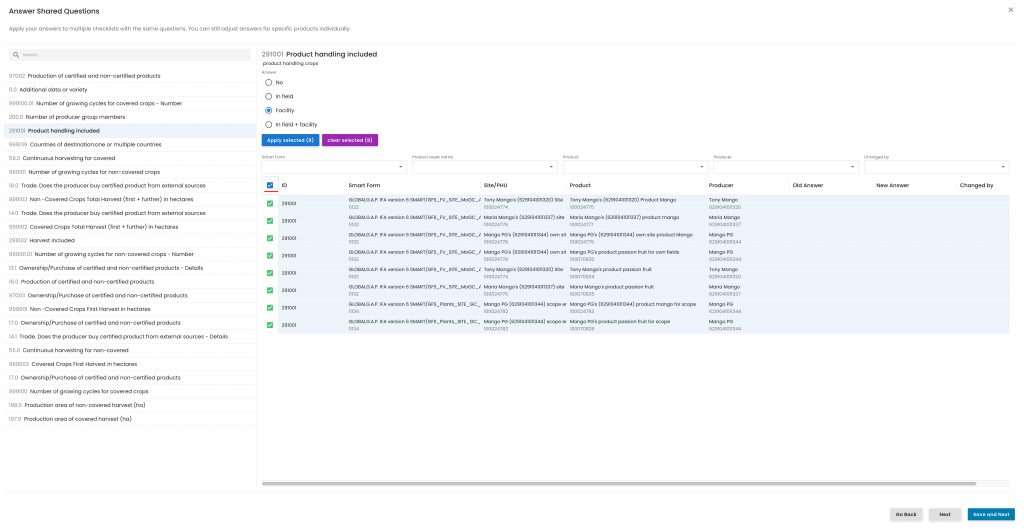
Or by using the filters “Checklists”, “Product asset name”, “Product” and “Producer”. In this example, we selected a producer:
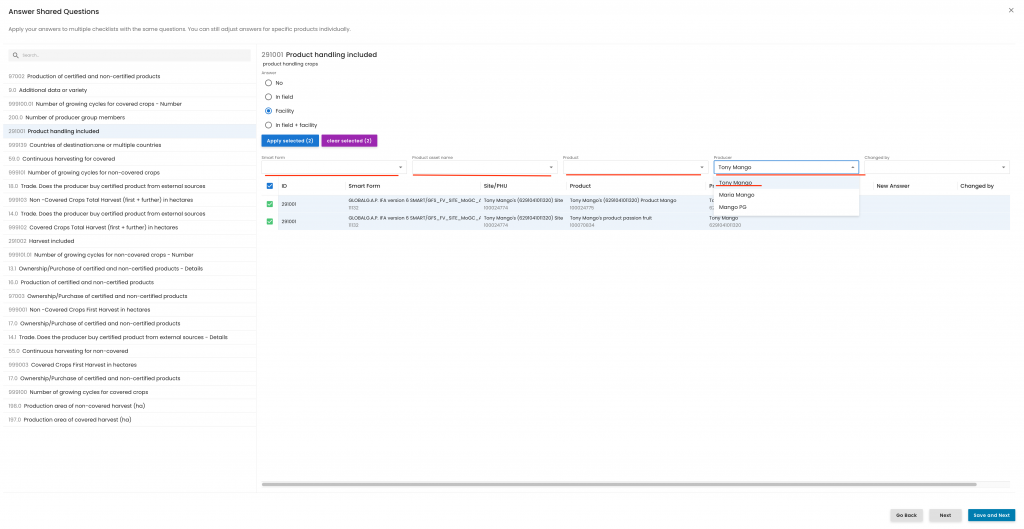
Note: To deactivate a filter, simply click on your current selection again.
In the example above, you would need to click on “Tony Mango” to remove the filter.
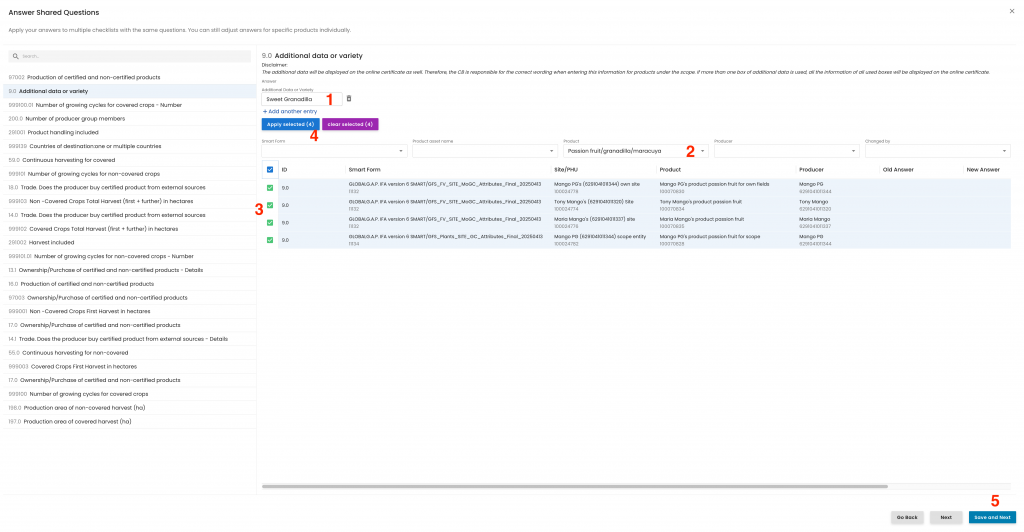
To correctly answer and save a question, follow these steps:
- Provide your answer to the question
- Select the relevant smart forms (you can choose one or multiple)
- Click the blue “Apply selected” button
- Click the blue “Confirm and Next” button
Important: If you do not press “Confirm and Next”, your answer will not be saved:
After answering the final question and clicking “Confirm,” the pop-up window will close, and you’ll be redirected to the smart form overview page. Each smart form should then be reviewed and closed as usual.
Reminder: It is recommended to use “Save and Submit” only after the audit review has been completed.
Individual Data Value Entry for the Answer Shared Questions functionality:
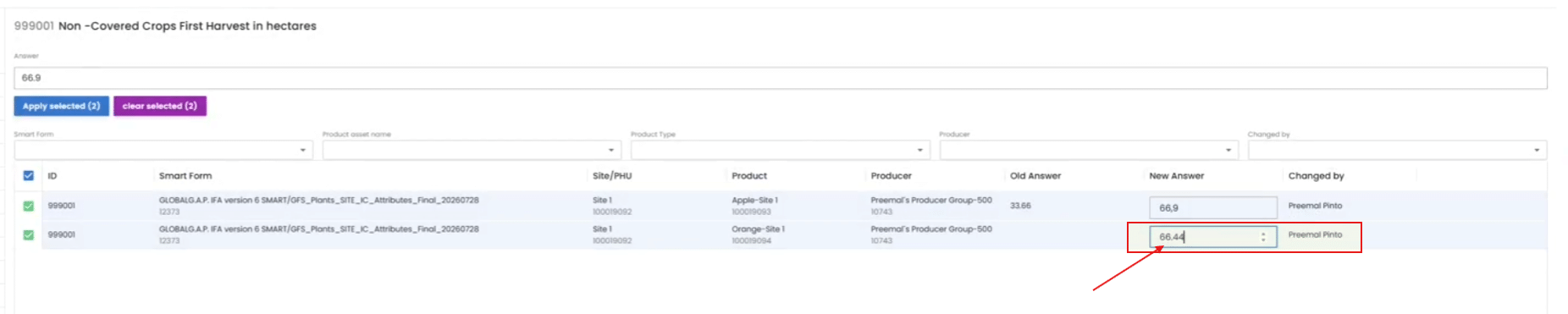
Individual Data Value Entry is allowing users to enter different data values via Mass answer by adding the data individually.
Example: If there are 2 products, Product A quantity or harvest in hectares is 66,9 and Product B is 66.44, the user can manually type in 66.9 for Product A and 66,44 for Product B
The Answer Shared Questions functionality should allow users to:
- Enter an answer individually for each questions.
- Enter a Mass Answer and apply it to one or multiple selected Smart Forms.
- Apply a Mass Answer to all Smart Forms when all are selected.
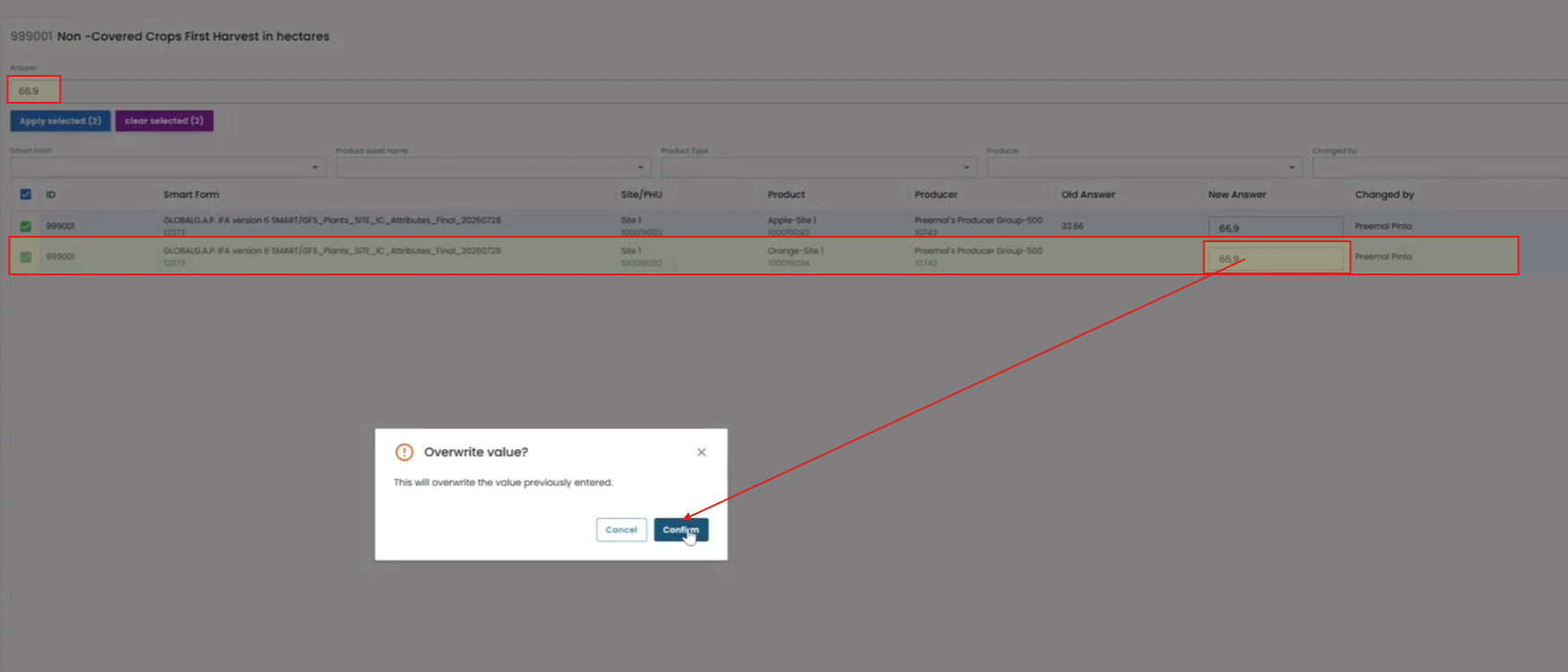
- Override a previously entered Mass Answer when entered with an individual answer.
- Override a previously entered individual answer when entered with an Mass Answer.
- Clearly warn the user whenever one type of answer will overwrite an existing answer.
- Ensure that the latest confirmed user action determines the final answer.
Note: You can still choose to complete the smart forms individually, one at a time.