
Prerequisite: The user has a license key available and an user in the CertifierOS portal
Note: Depending on the device and software version, the user experience may differ from the one described below.
PREPROD (test) Environment
- Install the desktop application file for testing in PREPROD environment. The application is available here: Osapiens.Operations_1.4.7.0_x86_x64.appxbundle
- Download the installation file and follow the instructions presented on the screen
- Note that the application needs to be installed directly to the device where the application is intended to be used
- Once the application has been installed, open the application
- Enter the license key and select “Activate Device”
- In the next screen, select “Synchronize” so that organizational settings of your CB are imported
- Enter the username and password of the user who will use the mobile application. The username and password are the same that are used to log in to the online portal for Certifier OS
- The user should now see the audit overview screen and the different audits that have been assigned to the user
LIVE Environment
- Install the desktop application file for LIVE/PROD environment. The application is available here: Windows LIVE Application
- Download the installation file and follow the instructions presented on the screen
- Note that the application needs to be installed directly to the device where the application is intended to be used
- Once the application has been installed, open the application
- Enter the license key and select “Activate Device”
- In the next screen, select “Synchronize” so that organizational settings of your CB are imported
- Enter the username and password of the user who will use the mobile application. The username and password are the same that are used to log in to the online portal for Certifier OS
- The user should now see the audit overview screen and the different audits that have been assigned to the user
LIVE Environment Windows Mobile App Update instructions:
To update your Windows App to the latest version, please follow the instructions below:
Download the new Windows client from Windows LIVE Application
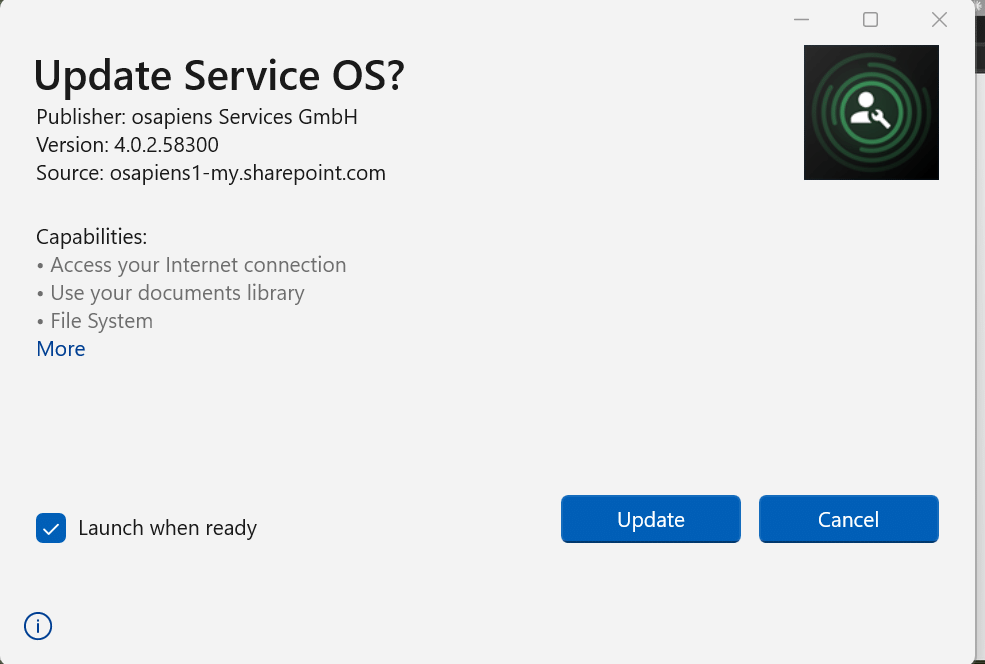
Open the installer from the download folder. If an older version is already installed, it is updated automatically and a pop-up appears. Click Update.
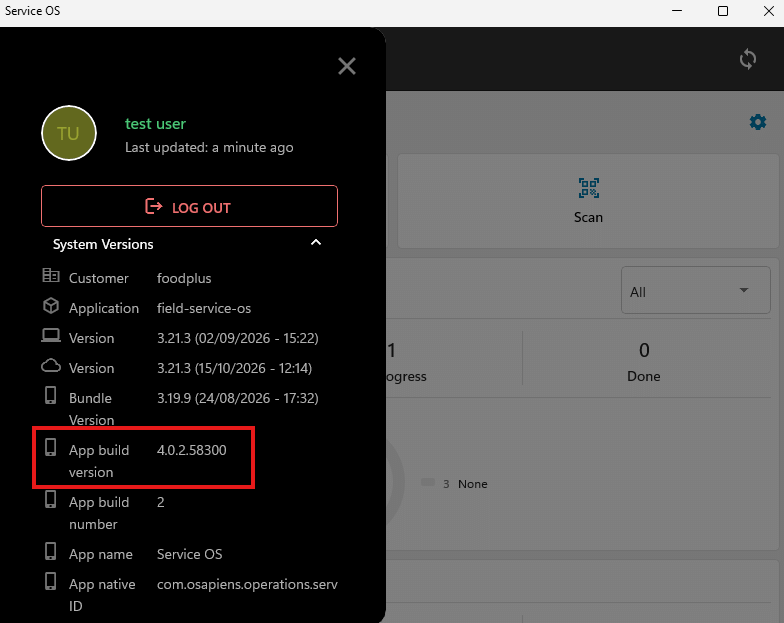
After the update, open the user menu in the app and go to System Versions. Check that the App build version matches the new version to confirm the update was successful.
Do not log out, as the update runs automatically and keeps the existing session.
If a user does need to log in again, for example because the session expired, the user was switched on a shared device, or the app was reinstalled or its data cleared, there are two login options:
- License key: If the user has already registered on the current device, the old license key can still be used. License keys are created per device.
- Username and password: Enter your e-mail and password for your CertifierOS account