Once you’ve created the producer or PG, as demonstrated in the respective links, proceed to the Products/Sites/PHU Browser section and click on ‘+Add Product/Site/PHU’:

Select ‘Site/PHU’ at the ‘Type’ field:

Based on the scenario, choose one of the options under ‘Category’.
In this example, we select ‘Site’, properly name the site and click on Continue.
Note: The same steps apply to the other category options, as described in the following steps:

Note: Sites such as CoC, NON-GMO and SIZA sites are selected as described in the respective wiki articles.
We select the producer and the contact person to assign the site and click continue:

We select our CB under ‘Orzanization’ and click continue:

We either add the full address or the geo-coordinates of the site and click on ‘Submit’.
Note: If the address is incomplete, the site will not appear on the certificate. When in doubt, it is recommended to use geo-coordinates.

For this example, we used random geo-coordinates and clicked on ‘Submit’:

With this, we have created the producer’s site:

IMPORTANT NOTE Regarding External PHU Sites
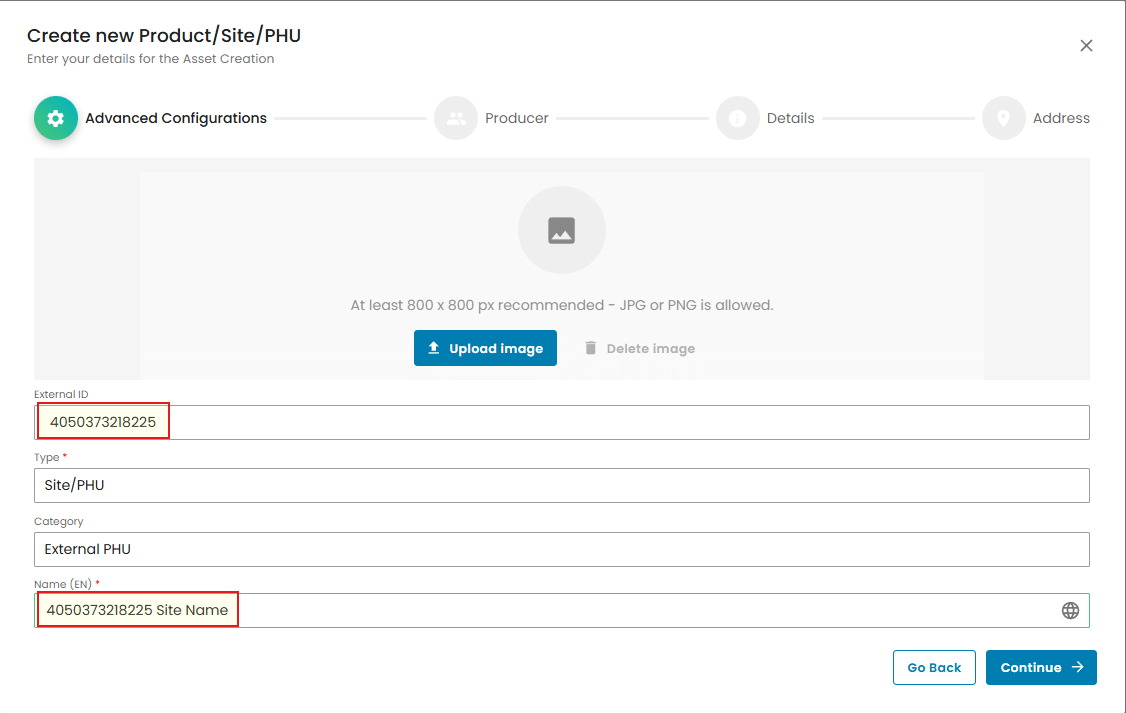
If you are creating an External PHU that has its own GGN or GLN, enter the GGN/GLN as the External PHU ID, as explained above.
In addition, include the GGN/GLN at the beginning of the External PHU title, before the descriptive text, as shown in the example below.
This ensures that the External PHU’s GGN/GLN is displayed on the certificate.